
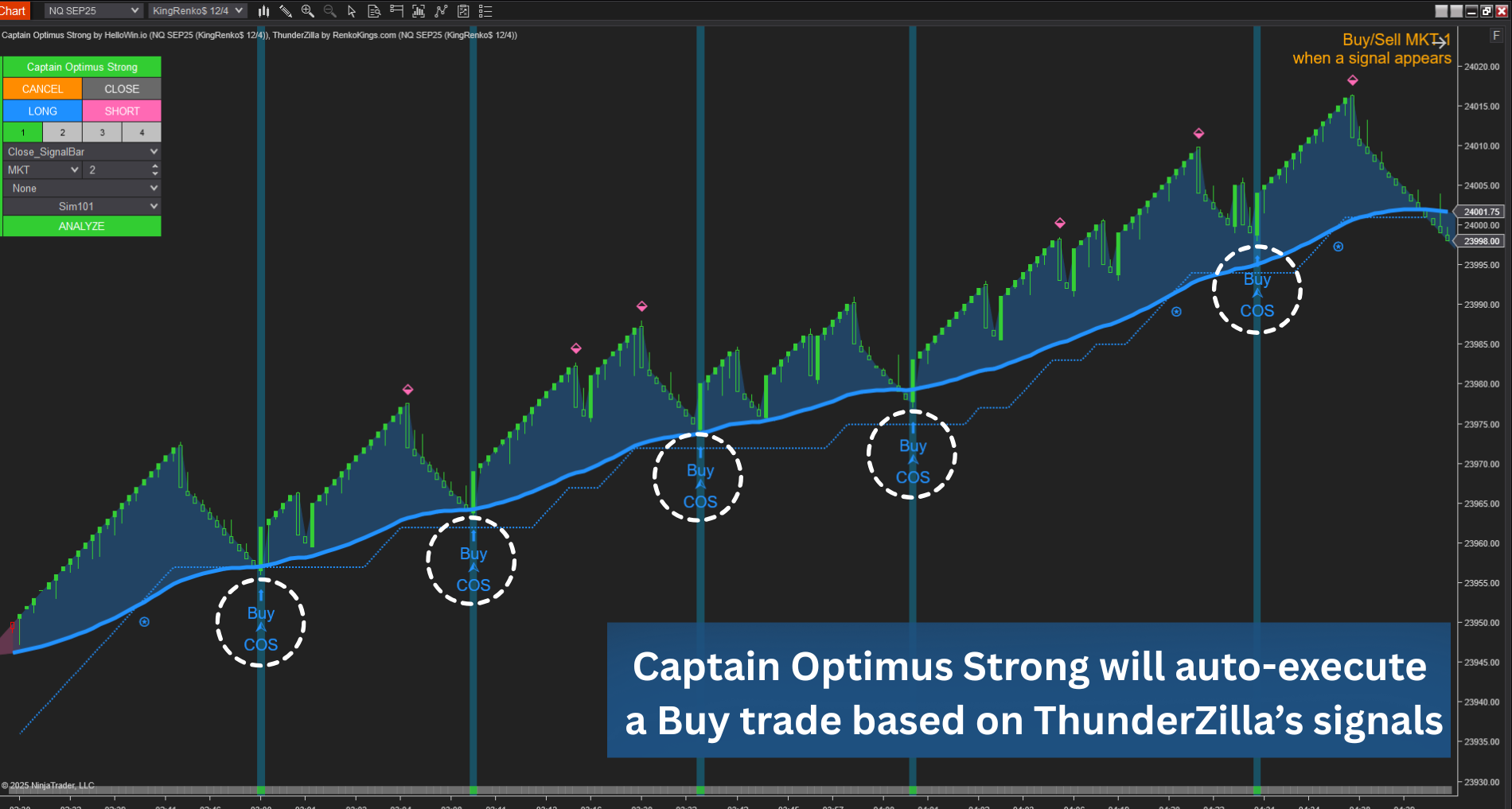
What if you could combine the strongest system with the most modern one? 🤔
That’s exactly what I and many other traders have been doing lately with ThunderZilla + Captain Optimus Strong… and honestly, it’s been an awesome combo.
Here’s why traders (myself included) love this setup:
- ThunderZilla delivers consistent, high-quality Pullback signals
- Captain Optimus Strong automates them safely and quickly with your ATM rules
Now every trade you take is the 1st pullback of a fresh trend. That’s usually the sweetest spot – the one with the highest reward potential.
How we set the auto strategies up
1. 3 settings you should keep in
Let me quickly share some key ThunderZilla settings you should note before jumping in:
1.1. Trend: MA Type
ThunderZilla gives you 11 MA options, so experiment and choose the one that feels right for your trading.

But our trading team recommends EMA, since it reacts faster and feels more responsive in trending markets.
1.2. Trend: Period
This controls how quickly the trend switches. Smaller values = quicker turns, larger = smoother.
- Short-term trend: 30–60
- Medium-term trend: 60–80
- Long-term trend: 80–120
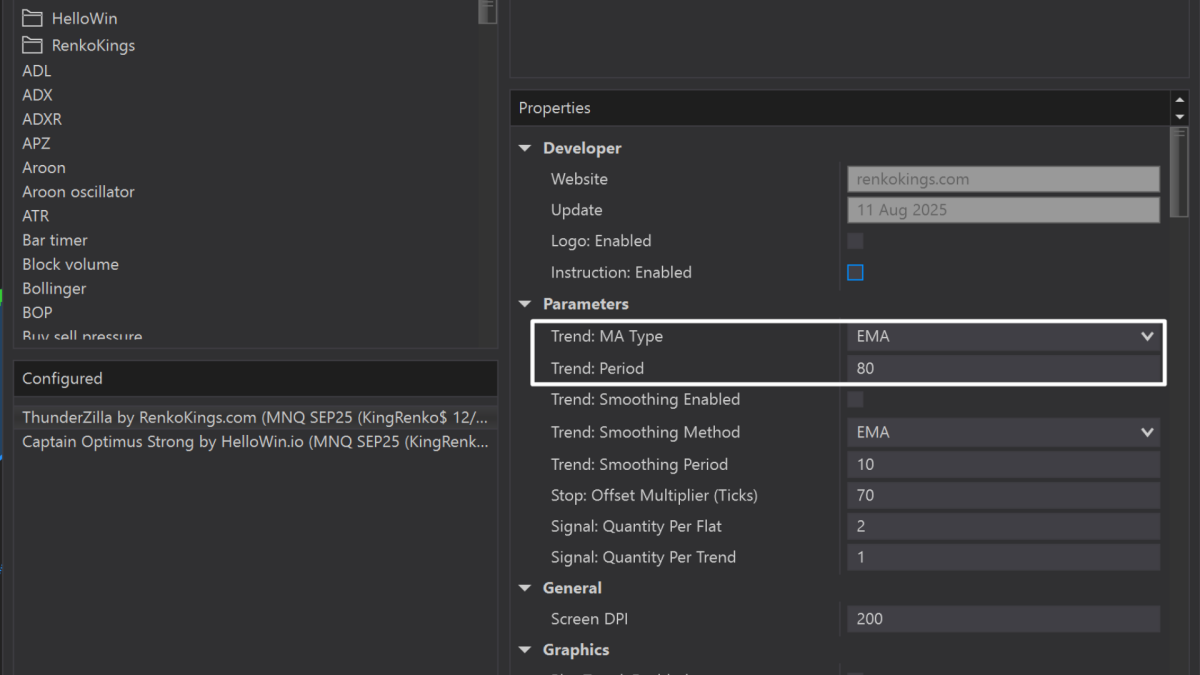
Don’t hesitate to experiment – testing is how you’ll discover the “sweet spot” for your instrument and style.
1.3. Stop: Offset Multiplier (Ticks)
The multiplier value for the “Trailing Stop” plot in Tick unit.
- For example, a setting of 30 means the “Trailing Stop” is 30 ticks from the Close price.
- This parameter’s minimum value is automatically set to match the “Trend Period.” Therefore, if the Trend Period is set to 30, you cannot choose a value smaller than 30 for this parameter.

2. Recommended combo setup
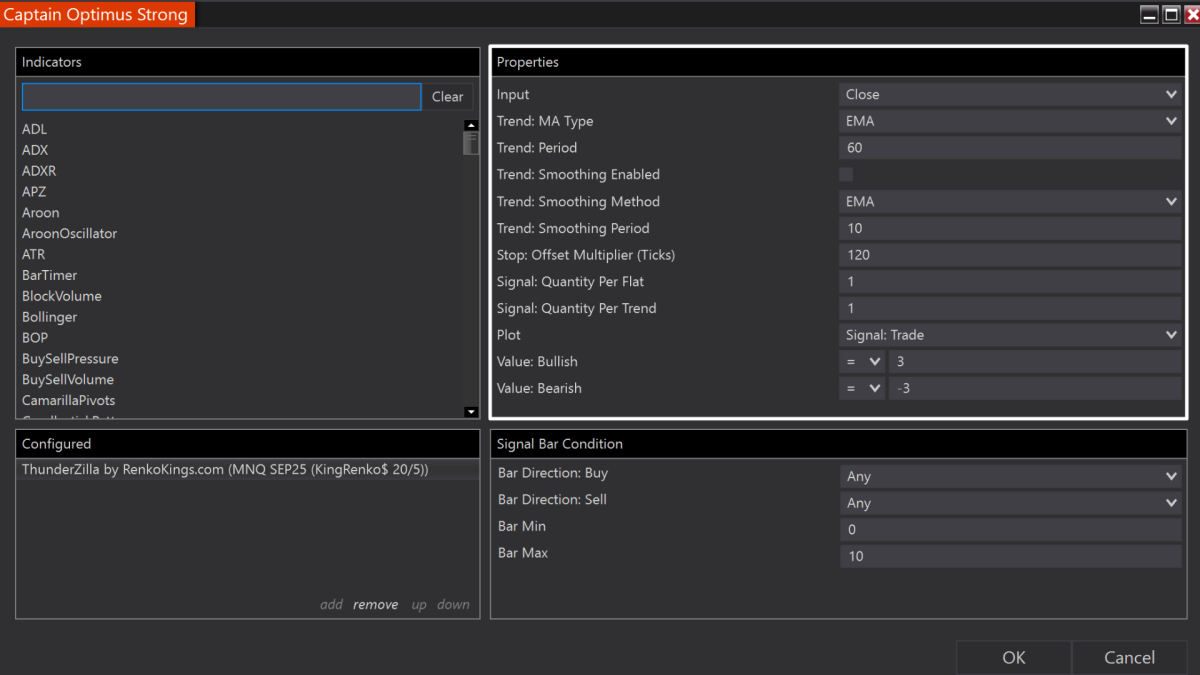
First of all, you should make sure the ThunderZilla settings inside Captain Optimus Strong’s window match the ThunderZilla chart you’re using.
Next, please note ThunderZilla has 4 signal types you can automate with:
If you prefer trading with trend signals, you can choose:
- Signal_Trade: 1 = uptrend start, -1 = downtrend start
Personally, I really like using Pullback signals. Because ThunderZilla catches those pullback points right at reversal bars – and that often gives me better profit potential.
If you want to trade pullbacks like I do, select:
- Signal_Trade: 3 = uptrend pullback, -3 = downtrend pullback
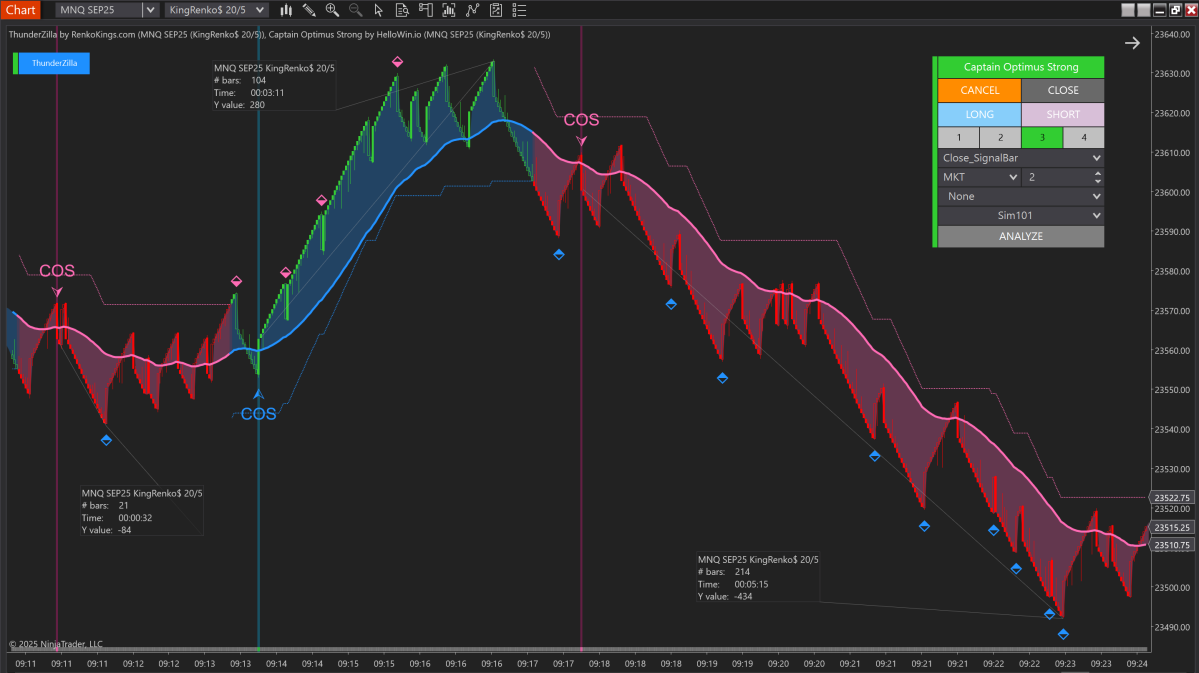
There are also 2 other signal types, you can see them clearly in the chart I shared below:
- Signal_Trade: 2 = downtrend slowdown, -2 = uptrend slowdown
- Signal_Trade: 4 = move stop up, -4 = move stop down

One setup that’s been working really well for me lately:
2.1. KingRenko$ 20/5
Here’s the performance of ThunderZilla
2.2. KingRenko$ 12/4

Here’s the performance of ThunderZilla

3. KingRenko$ 20/4
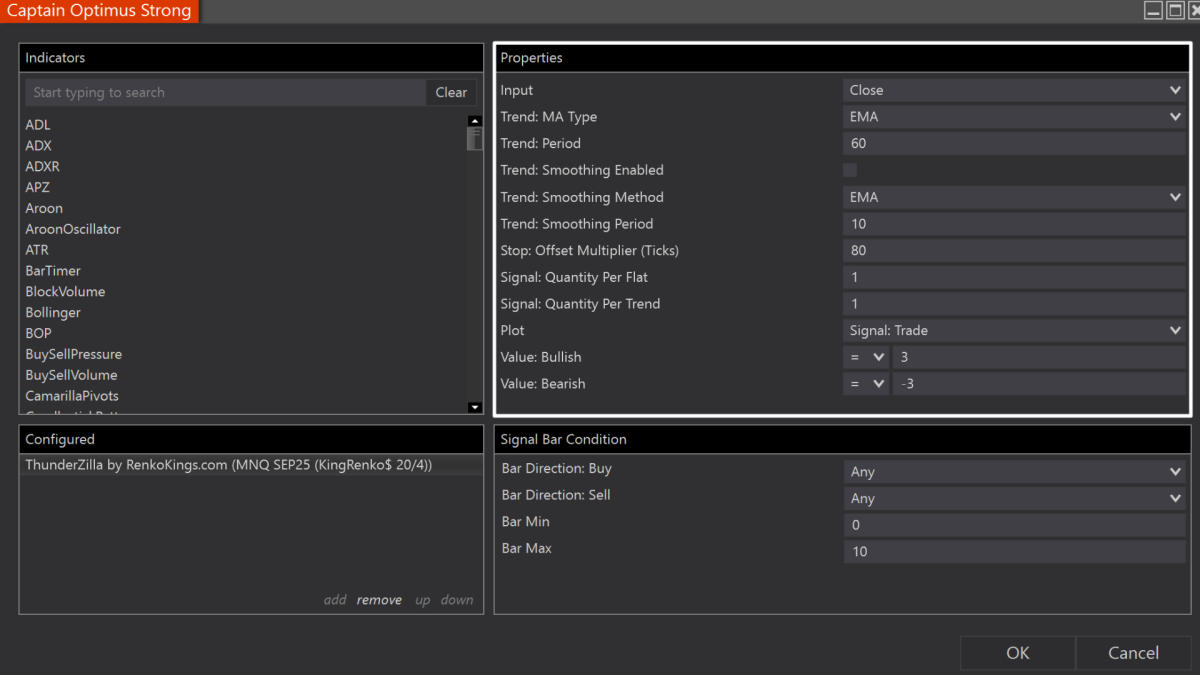
Here’s the performance of ThunderZilla
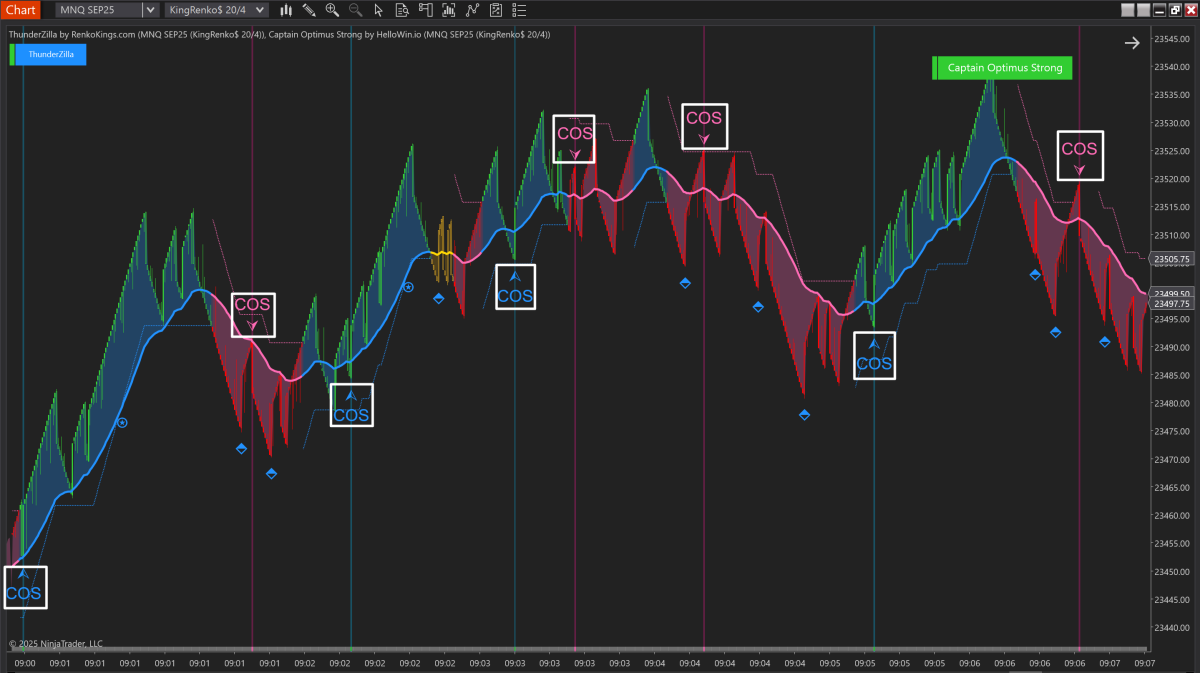
This combo has quickly become one of the hottest setups among traders – and for good reason. It keeps things simple, consistent.
If you already have ThunderZilla and Captain Optimus Strong, try these settings out this weekend.
If not, I’ve arranged a personal deal for you here:
Leave a Reply